
Create Conversion - via Dashboard
Follow the steps below to create a new currency conversion through the UQPAY Banking Dashboard
Step 1: Sign In
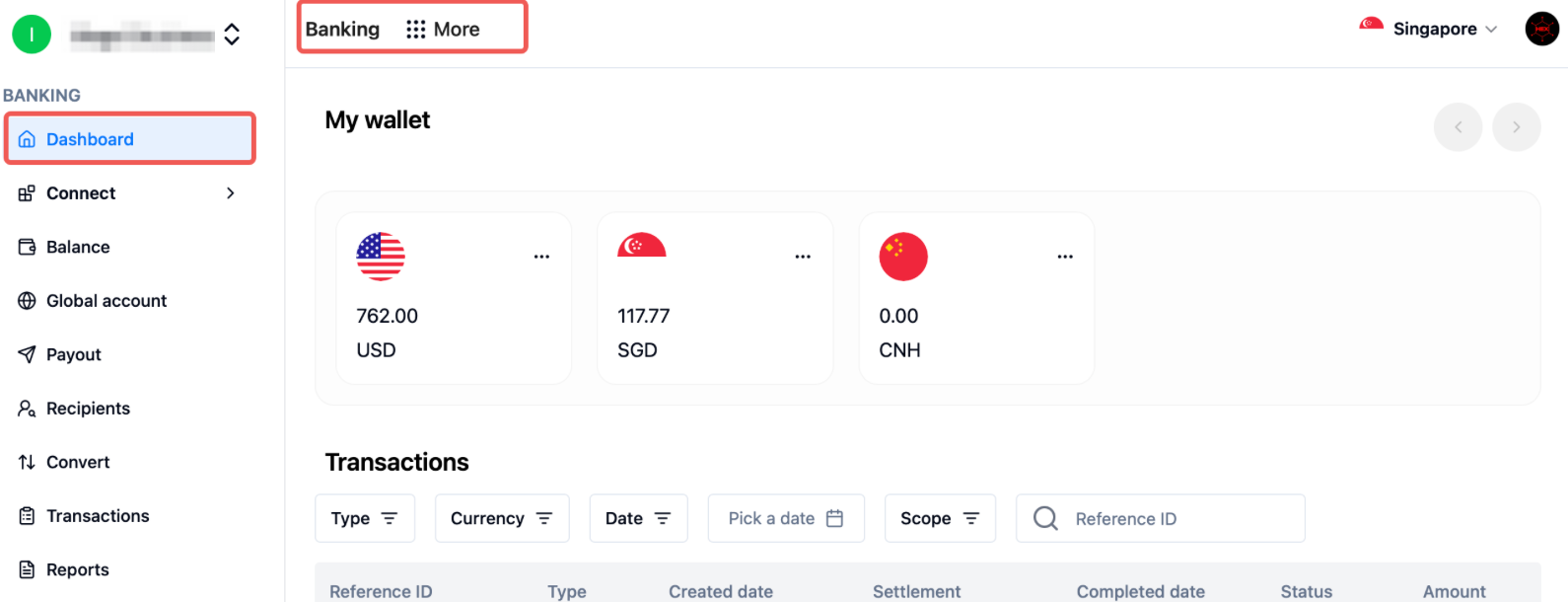
Log in to your UQPAY account and navigate to Banking → Dashboard.
Step 2: Start a New Conversion
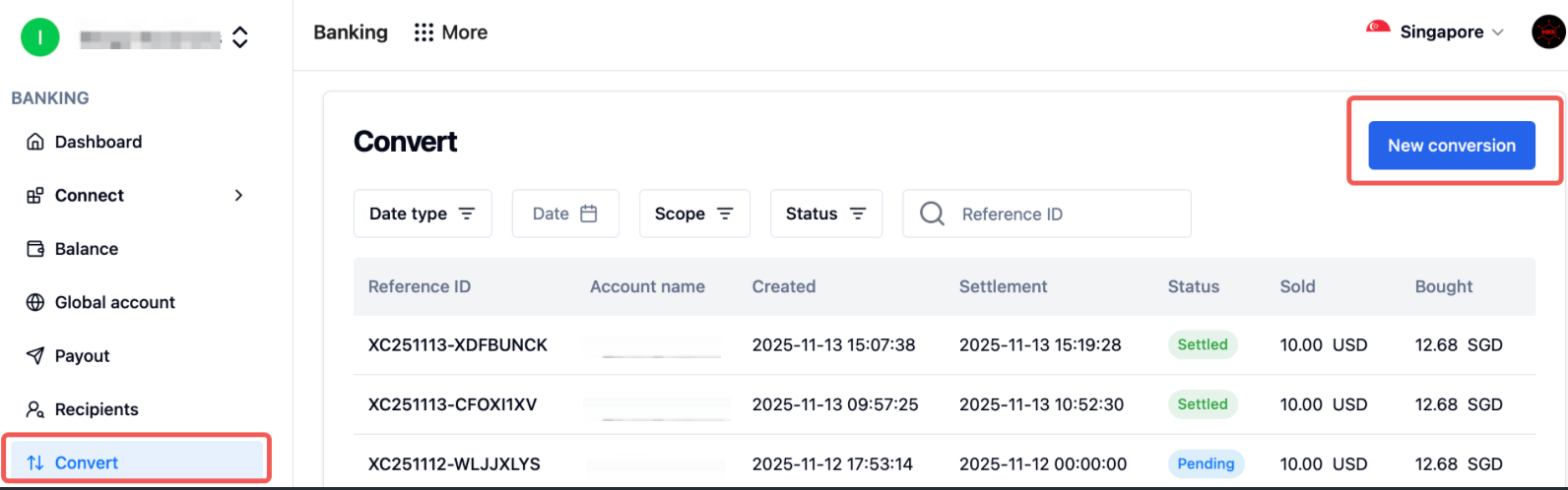
On the Dashboard, click Convert and then select New Conversion to initiate a new currency exchange request.
Step 3: Select Currency Pair and Enter Amount
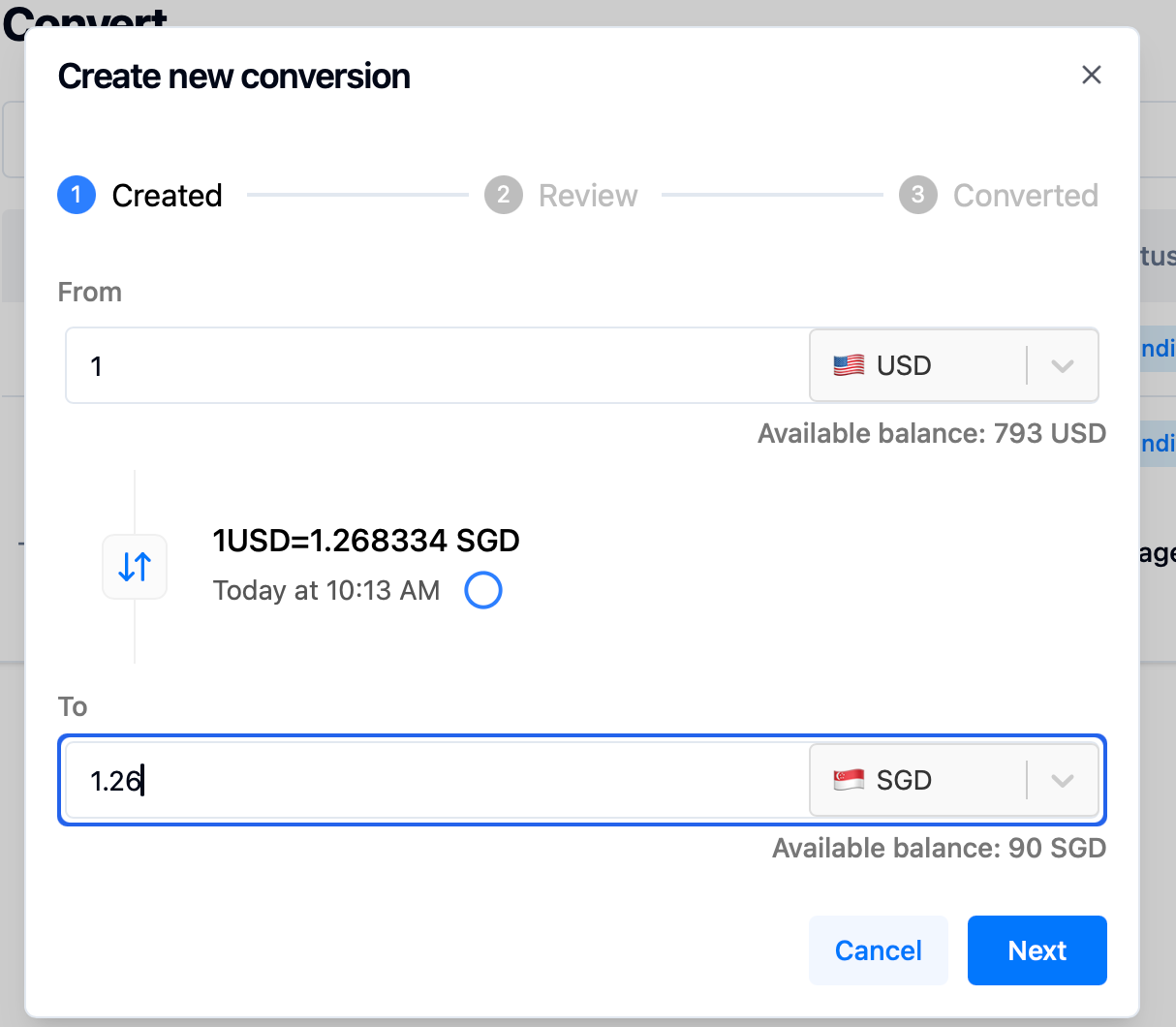
- Choose the sell currency and buy currency for the conversion.
- Enter the amount you wish to convert. The current conversion rate will be displayed in the middle of the screen for your reference.
Ensure your sell currency account has sufficient balance before proceeding with the conversion.
Step 4: Review Conversion Details
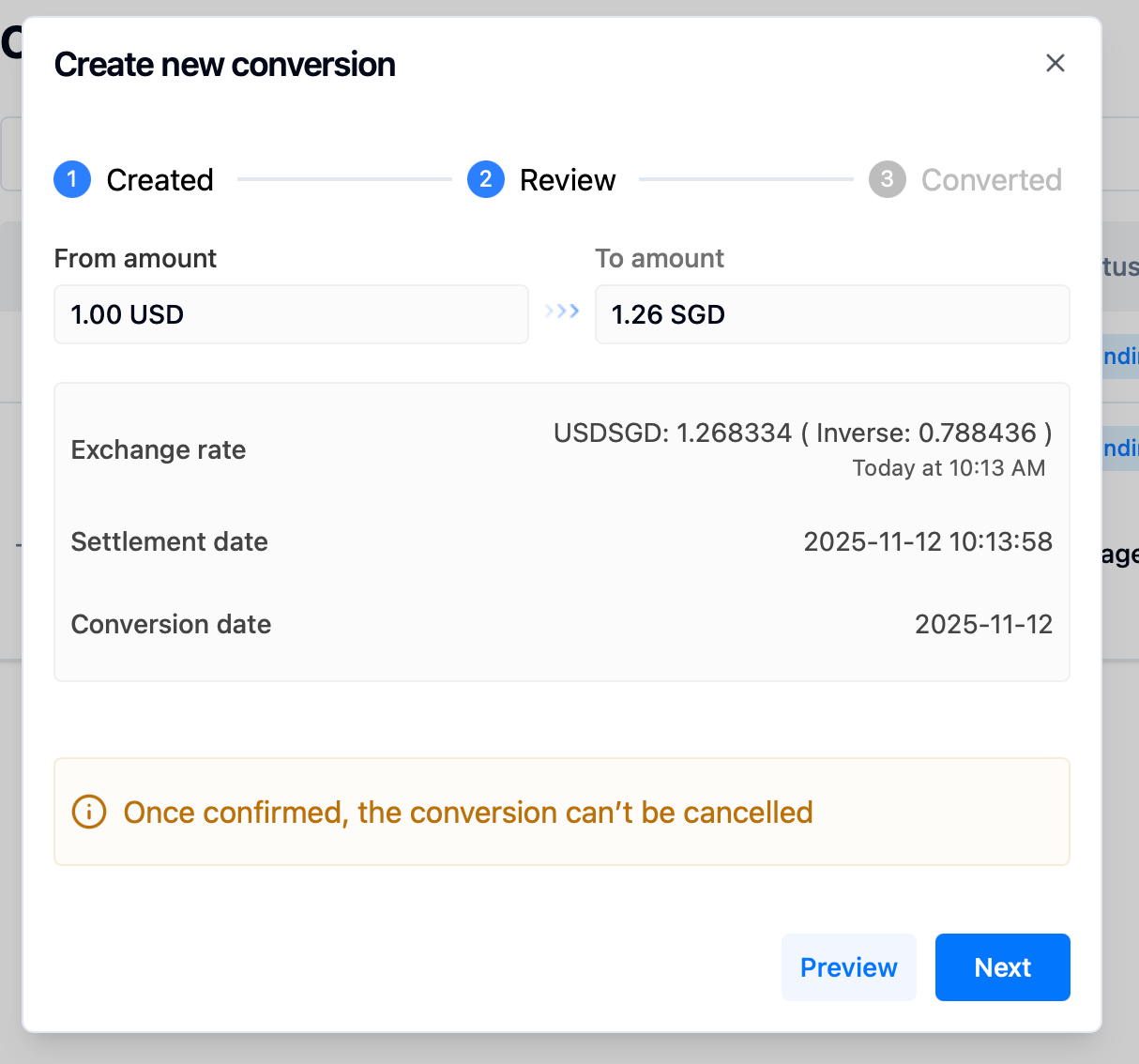
Review all the information carefully.
If you wish to make changes (e.g., adjust the amount), click Preview to return and update your input.
After you make the conversion order, the system will trigger the following webhooks: conversion.funds.awaiting and conversion.funds.arrived.
conversion.funds.awaiting: The conversion order has been placed successfully.conversion.funds.arrived: The funds in the sell currency account have been deducted.
Step 5: Submit and Await Approval
After confirming all details, submit your conversion order.
Once submitted, the order will be sent to UQPAY for approval.
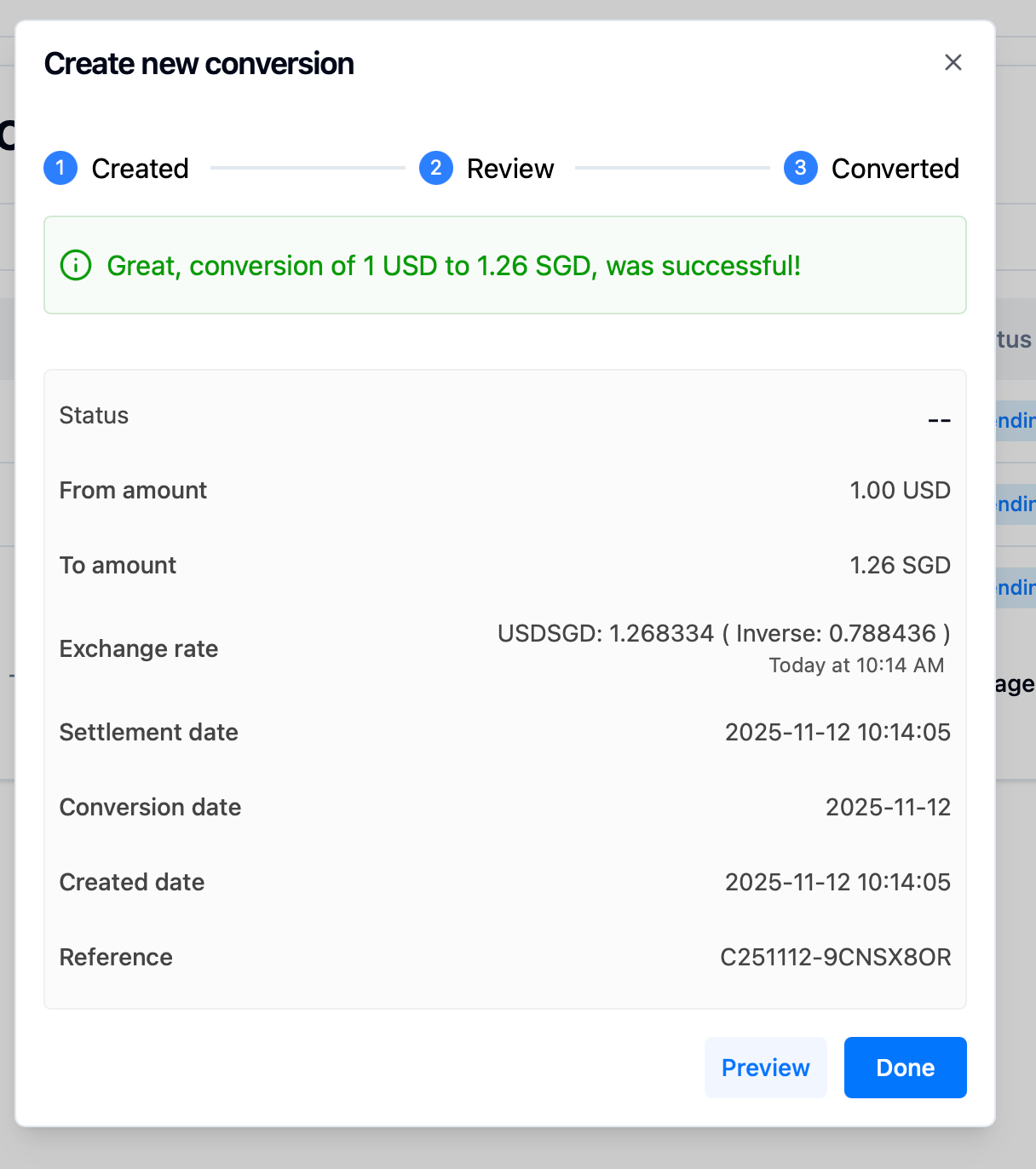
Users may receive one of the following webhooks, depending on the outcome of the conversion order:
conversion.trade.failed: The conversion order has failed or been cancelled.conversion.trade.settled: The conversion has successfully completed.
Related
Updated 8 months ago